
What the Metrolist equalizer changes
An equalizer changes the relative level of parts of an audio signal. Raising a low-frequency range can make kick drums and bass guitar more prominent; changing the middle range can affect vocal and instrument presence; changing the high range can add or reduce brightness. These are broad listening descriptions, not exact frequency labels for every Metrolist build.
The Metrolist README feature list names Equalizer alongside audio normalization, tempo and pitch control, and crossfade. Those controls do different jobs: an equalizer changes tonal balance, normalization manages perceived level, tempo and pitch affect playback speed or pitch, and crossfade overlaps track endings. If you are trying to fix quiet playback, a song-match issue, or a transition, changing EQ may not address the cause.
How to find the equalizer in Metrolist
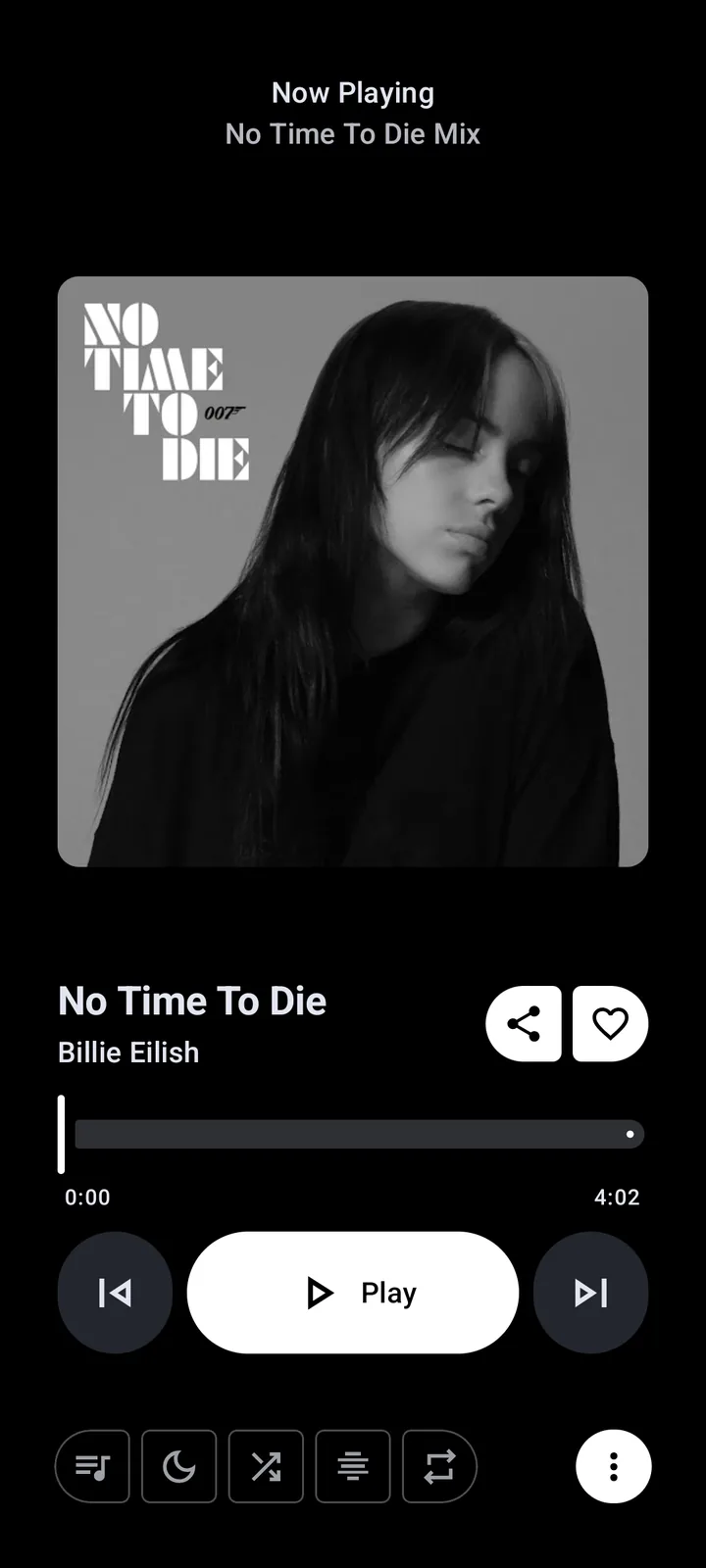
Begin with a song playing so the expanded player is available. Look through the visible player actions and its overflow menu, then check the app's audio or playback settings if the option is not on the player. Menu names and placement can change between app versions, and a connected device may expose its own audio effects separately.
Do not infer that a small icon opens EQ unless its label or the current app help confirms it. If you cannot find an equalizer control, verify the app version from Android's app information, read the matching project's release notes, and check whether the effect belongs to the phone, earbuds, car stereo, or another audio app instead. Avoid installing an unrelated equalizer APK just because its name resembles Metrolist.
- Play a familiar track and open the full Now Playing screen.
- Inspect labeled player actions and the overflow menu for Equalizer or an audio-effects entry.
- If it is not there, inspect Metrolist's audio or playback settings without assuming a fixed menu path.
- If no app-level control appears, check the phone or headphone manufacturer's audio settings and the installed Metrolist release notes.
- Keep the app, Android, and headphone effects separate in your notes so you know which control you changed.
Bass, mids, and treble: a practical listening guide
Bass is the low end: kick drum weight, bass lines, and the sense of depth in a mix. A small increase may help on thin-sounding headphones, but too much can mask vocals, soften kick definition, or make a busy track feel muddy. If bass becomes a rumble rather than a clear note, return the control toward neutral before increasing anything else.
The middle range carries much of the body and intelligibility of voices, guitars, keyboards, and snare. Lowering too much can make a mix sound distant; raising too much can make vocals or guitars feel crowded. Treble affects cymbals, consonants, pick attack, and perceived detail. A large boost can make hiss or sharp recordings more obvious. The exact result depends on the recording, headphones, fit, volume, and any other active processing, so there is no universally correct curve.
- If the mix sounds heavy, reduce bass a little before boosting treble.
- If vocals seem far away, check the middle range and headphone fit before applying a large change.
- If cymbals or consonants feel sharp, reduce treble gently and compare at the same volume.
A repeatable way to tune Metrolist EQ
Use a short, familiar section with a vocal, a low instrument, and a steady beat. Listen once with the equalizer neutral, then make one modest change. Avoid adjusting several bands at once: if the result improves or gets worse, changing one control makes the reason easier to identify. Do not judge a louder setting as automatically better; match playback volume as closely as you can before comparing.
Try more than one recording before keeping a change. A setting that gives one bass-light track more body may make a dense mix boomy. If your Metrolist build offers named presets, treat them as starting points rather than authoritative recommendations. Make a note of the original state or return to neutral so you can undo the change. The goal is a comfortable balance across your usual music, not a dramatic waveform or maximum bass.
- Choose a familiar 20- to 30-second passage and set a comfortable listening level.
- Listen with the equalizer neutral and note what sounds too strong or too quiet.
- Move one control by a small amount; leave the other controls unchanged.
- Replay the same passage and match the volume before deciding whether it helped.
- Check a second song, keep the change only if it remains useful, and save or note the neutral starting point.

When the equalizer is missing or seems to do nothing
First separate discovery from playback. If the menu item is missing, confirm that the installed build includes the feature and check its matching release notes. If the control opens but the sound does not change, compare wired headphones, Bluetooth, the phone speaker, and another known-good track where practical. Bluetooth codecs, device processing, and manufacturer sound modes can alter what you hear, so test with one output path at a time.
Android audio effects may be attached to a playback session or supplied by the device, headphones, or another app. If two processors are active, their combined result can be confusing. Temporarily turn off one competing effect, replay the same passage, and restore it before testing another. Do not clear app storage or reinstall just to troubleshoot tone: first record your current setting and check non-destructive controls.
| What you notice | Controlled check | What it helps separate |
|---|---|---|
| No equalizer option | Check the current build and its release notes | Feature availability from menu-placement differences |
| The control opens but sound seems unchanged | Replay one passage through one output device | App processing from output-device processing |
| Sound becomes muddy or sharp | Return toward neutral and change one range | An excessive adjustment from a playback fault |
| Other audio apps sound different | Disable one device effect for a single comparison | Overlapping effects from Metrolist EQ itself |
Keep the change reversible
An equalizer cannot restore detail that is absent from a recording, repair a network stream, or make every headphone sound alike. It can only change the balance reaching the audio output. If music stops, skips, or never starts, use the Metrolist troubleshooting guide to isolate playback, network, or account problems rather than treating them as an EQ issue.
When a setting stops helping, return every band to neutral or reset the active preset using the controls shown in your installed version. Then disable any overlapping phone or headphone effect and test again. Keep the official release list as the source for current feature availability, because third-party menu screenshots can describe a different build. This simple reset path makes experimentation easy to reverse and keeps a sound preference from becoming a hard-to-diagnose playback change.
Metrolist equalizer FAQ
Does Metrolist have an equalizer?
The official Metrolist README lists Equalizer as an audio feature. Availability and menu placement should be confirmed against the installed build and its release notes.
How do I open the Metrolist equalizer?
Start playback, inspect the expanded player actions and overflow menu, then check audio or playback settings. The exact route may vary by version, so do not rely on an unverified icon or fixed menu path.
What is a good Metrolist EQ setting for bass?
There is no universal preset for every recording and headphone. Start at neutral, make one small low-range adjustment, compare the same passage at matched volume, and undo it if vocals become muddy.
Why does my equalizer not change the sound?
Check that playback is active, compare one output device at a time, and look for phone, headphone, or other-app effects that may also be processing audio.
Is Metrolist EQ the same as audio normalization?
No. Equalization changes tonal balance, while audio normalization manages perceived loudness. The project lists these as separate audio features.